

Windows VPS Server – Affordable, Fast, and Flexible
Scalable Windows VPS hosting designed and priced for everyone – from beginners to tech pros. Enjoy quick setup, consistent performance, and secure, scalable solutions that give you full control over setup and administration.

Cloud VPS 10
Windows Server
$
13
26
/ month
for a 12-month term
4 vCPU Cores
8 GB RAM
75 GB NVMe
or 150 GB SSD
1 Snapshot
200 Mbit/s Port
Unlimited Traffic*
Cloud VPS 20
Windows Server
$
25
46
/ month
for a 12-month term
6 vCPU Cores
12 GB RAM
100 GB NVMe
or 200 GB SSD
2 Snapshot
300 Mbit/s Port
Unlimited Traffic*
Cloud VPS 30
Windows Server
$
44
00
/ month
for a 12-month term
8 vCPU Cores
24 GB RAM
200 GB NVMe
or 400 GB SSD
3 Snapshot
600 Mbit/s Port
Unlimited Traffic*
Cloud VPS 40
Windows Server
$
10
81
/ month
for a 12-month term
12 vCPU Cores
48 GB RAM
250 GB NVMe
or 500 GB SSD
3 Snapshot
800 Mbit/s Port
Unlimited Traffic*
Cloud VPS 50
Windows Server
$
108
26
/ month
for a 12-month term
16 vCPU Cores
64 GB RAM
300 GB NVMe
or 600 GB SSD
3 Snapshot
1 Gbit/s Port
Unlimited Traffic*
Cloud VPS 60
Windows Server
$
133
40
/ month
for a 12-month term
18 vCPU Cores
96 GB RAM
350 GB NVMe
or 700 GB SSD
3 Snapshot
1 Gbit/s Port
Unlimited Traffic*
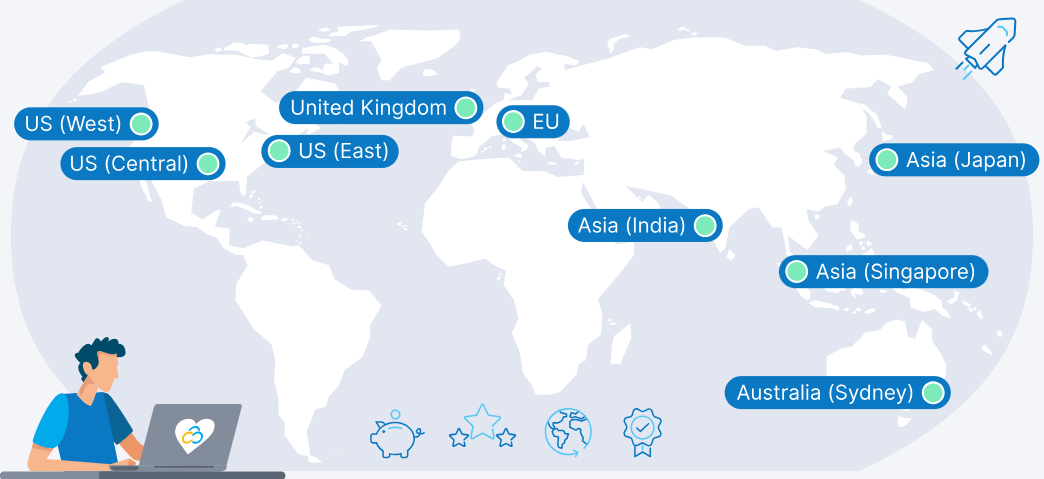
9 Regions, 11 Locations, Global Availability
From the USA to the UK, from Europe to Asia and Australia, choose your ideal hosting location for low latency worldwide
Why Choose Windows VPS Hosting?
Windows VPS hosting offers a range of benefits that meet the dynamic needs of businesses and developers. Here’s how a Windows VPS can benefit your projects:
Windows App Support
Run essential Windows-based applications like .NET and ASP.NET, ensuring smooth execution and straightforward deployment.

Scalable Resources
Effortlessly scale up or down on resources like CPU, RAM, and storage – perfect for handling SharePoint and SQL Server databases.

Integrated Active Directory
Enjoy the convenience of integrated Active Directory, simplifying authentication, user identities, and access management.

Consistent Environment
Maintain a uniform Windows environment across your infrastructure, enhancing compatibility and streamlining deployment and maintenance.

Remote Desktop Access
Stay connected from anywhere with secure Remote Desktop access, facilitating remote work and efficient server management.

Maximize Windows Expertise
Harness your team’s existing familiarity with Windows OS to streamline server setup and management without a steep learning curve.
What are the main advantages of a Windows VPS vs. Linux equivalents?
Windows servers offer benefits that make them a preferred choice for many users.
Licensing
Windows provides volume licensing and enterprise features that can be more cost-effective than Linux for larger setups.
Installation
Windows employs user-friendly installer-based software setup. Linux uses more complex package managers.
Development
Windows is proprietary, offering a unified environment. Linux is open-source and customizable, but requires more expertise.
Performance
Windows integrates well with its ecosystem of tools and apps. Linux sacrifices integration for greater efficiency.
Configuration
Windows primarily uses a GUI, making it user-friendly. Linux is more efficient via CLI, but with a learning curve.
File Systems
Windows enhances compatibility and streamlined data management within its ecosystem, boosting reliability.
Available Windows Distributions
We offer the following preinstalled Windows Server Standard versions across all our servers.
Windows Server 2025
All Win Server 2019 & Win Server 2022 Features
Hotpatching – No reboot updates
Credential Guard – Secure logins
Accelerated Networking – Faster VMs
NVMe Optimization – Speed boost
Hybrid Cloud – Azure-ready
Admin Center – Better management
Cloud-Init – Fast deployment
Windows Server 2022
All Windows Server 2016 Features
All Windows Server 2019 Features
Secured-Core-Technology
DNS-over-HTTPS (DoH)
Microsoft Edge browser
Upgraded Hyper V Manager
Enhanced Storage Replication
Windows Server 2019
All Windows Server 2012R2 Features
All Windows Server 2016 Features
Advanced Threat Protection
Windows Admin Center
Kubernetes support
Device Guard
Kernel soft reboot
Windows Server 2016
All Windows Server 2012R2 Features
Windows Defender
Windows Powershell 5.0
Network Controller
IP Address Management (IPAM)
Apps and Deployment Options for Your Windows VPS

Plesk

Docker

Windows Admin Center

IIS Manager
Powerful Configurations for your Windows VPS
Explore the many possibilities of a Windows virtual machine. Here’s a look at our top picks:
Cloud VPS 10
Remote Desktop
$
13
26
/ month
for a 12-month term
Secure remote access with responsive performance and seamless connectivity.
Cloud VPS 20
Mail Server
$27.05
$
25
46
/ month
for a 12-month term
Enhance your communication with high-volume mail handling and excellent reliability.
Cloud VPS 30
Meta Trading
$47.00
$
44
00
/ month
for a 12-month term
Transform your trading with rapid execution, ideal for high-frequency trading.
Cloud VPS 40
App Development
$86.30
$
81
10
/ month
for a 12-month term
Supercharge app development and testing with high-capacity resources for demanding tasks.
Cloud VPS 50
Database Hosting
$
108
26
/ month
for a 12-month term
Optimize database performance with high-speed access. Perfect for handling large, complex data sets.
Cloud VPS 60
eCommerce Store
$
133
40
/ month
for a 12-month term
Support high traffic and transaction volumes for your store with reliable processing power.
These are just a few sample configurations. You can browse Contabo’s product portfolio of Virtual Private Servers (VPS), Virtual Dedicated Servers (VDS), Dedicated Servers or check our pricing page for a full overview.
Why host your Windows VPS with Contabo?

Pricing & Flexibility
Start affordably with a cheap Windows VPS server and scale easily on your terms. Even without a managed Windows VPS, our team and tutorials have you covered.

Backup & Recovery
Protect data with snapshots or our Auto Backup add-on for extra security. Ideal for unmanaged Windows VPS hosting, keeping your VPS dependable.

Network & Connectivity
Deploy near your users or choose an offshore Windows VPS for data or jurisdiction flexibility. Our global network delivers fast, stable connections with low latency.

Performance & Scalability
Power apps with Windows SSD VPS plans optimized for quick boots and rapid data access. Scale CPU, RAM, and storage on demand to match your workload.

Security & Compliance
Run a secure Windows VPS with secured images, access control, and built-in DDoS mitigation. GDPR-compliant protections keep workloads safe on Windows Cloud VPS hosting.

Uptime Commitment
Reliable, monitored infrastructure ensures 99.9% uptime around the clock. Your services stay online and responsive when it matters most.
Trusted by Thousands Worldwide
22 Years
In Business
225,000+
Customers Worldwide
190
Countries Served
450,000+
Servers Running
See Why Customers Love Contabo

First-class Customer Support
A premium support experience for every customer is one of our cornerstones. Our team of highly-trained human support agents is here to help you 24/7, 365 days a year. We believe in offering many ways to find a solution, so you can get help instantly via live chat, explore our extensive self-support resources, or learn from our practical tutorial videos.
You don’t have to take our word for it – our customers agree, with thousands of reviews earning us a 4.3 score on Trustpilot.
Learn more about the Contabo Support Experience.
Windows VPS FAQs
Frequently Asked Questions about Contabo Windows VPS
A Windows VPS (Virtual Private Server) is a virtual machine running the Windows Server operating system. It offers dedicated resources like CPU, RAM, and storage on a shared physical server. This setup provides the flexibility and control of a dedicated server, but at a lower cost. You can use it to host websites, applications, remote desktops, or even run custom business software, all with full admin access.
Contabo’s Windows VPS hosting enhances your business operations by offering scalable resources, full administrative control, and compatibility with numerous Windows-based applications. This makes it ideal for businesses looking to efficiently run software like SQL Server, SharePoint, or any .NET based frameworks without investment in physical hardware.
Developers find Contabo’s Windows VPS hosting highly advantageous due to its root access feature, which allows the installation and configuration of advanced software and tools. This, coupled with compatibility for key development frameworks and databases, makes it an ideal environment for development and testing.
Yes, with Contabo’s Windows VPS, you can host multiple websites. Each VPS provides the ability to configure and manage multiple domains, giving you the flexibility to support various projects or customer websites from a single server.
We accept payments in EUR, USD, and GBP, with different payment methods depending on the currency. Please see the full list here and this helpful video guide for more information.
For all payment methods other than credit card, the first payment after you have submitted an order has to be done manually. Please use the payment information provided after the order process. Once you have access to your Customer Control Panel, you can manage your payment methods, make payments, and set up automated payments conveniently.
Each Cloud VPS plan is preconfigured to give you the most value for your money, so you’re not able to customize or change the hardware specs of your plan. But you can easily upgrade to a better configuration or increase storage as needed via the Customer Control Panel.
We also recommend exploring our Virtual Dedicated Servers or our powerful Dedicated Servers for more customization options.
Yes, you can upgrade to a more powerful VPS plan through the Customer Control Panel. Simply navigate to your VPS instances via the sidebar, then click “More” on the VPS you wish to upgrade and select “Upgrade” from the dropdown menu.
If you want to downgrade, then you’ll need to buy the smaller plan through the Customer Control Panel. Once you downgrade, we recommend transferring all the data from your current VPS to the new one, and then mark your old VPS for cancellation. You’re always welcome to contact support if you need help with this.
All our servers are self-managed by default. However, should you anticipate needing some occasional or regular help with your Windows Dedicated Server, you can add a limited server management option during the configuration process for an additional fee.
The choice between Windows and Linux for your VPS depends on your intended usage, familiarity with the operating system, and cost considerations. Linux is often preferred for web hosting, development environments, and servers running applications like databases or CMS platforms due to its stability, security, and lower costs. Windows is suitable if you rely on Microsoft technologies such as ASP.NET or need to run Windows-specific software. Your comfort level and expertise with either Linux or Windows should also guide your decision.
All our server options are highly customizable, so consider your performance needs, storage requirements, and budget. To make things easier, we have put together a few preconfigured Windows server bundles for common use cases (see above).
On our VPS, you cannot use your own Windows license. Due to our licensing agreement with Microsoft, you will need to use the Windows Server license provided by us. The terms of the license agreement require us to charge a monthly fee for Windows Server, which is determined by the size of the VPS you order.
Yes, our self-managed servers support the use of unified management tools, including Microsoft System Center, allowing you to efficiently manage your hosting environment.
Yes, you can run mail software such as Microsoft Outlook on a Windows VPS from Contabo. Our Windows VPS servers are fully compatible with Windows applications, including Outlook and other email clients. By installing Outlook on your Windows VPS, you can access and manage your email accounts securely and efficiently from anywhere.
When you order a new Windows VPS at Contabo, the Windows Server image is installed automatically. To switch an already existing server, open the Customer Control Panel and run Reinstall with a Windows Server image. This way, licensing is handled for you. Please mind that upon reinstallation, all existing data will be deleted.
You can find step-by-step instructions in our guide on Installing My Contabo Server for the First Time.
To set up a Windows VPS server, first connect via Remote Desktop (RDP) using your IP, username, and password. Then:
Run Windows Update and reboot if prompted.
Harden your firewall by restricting RDP access where possible (trusted IPs or VPN if available).
If you install additional services, use strong, unique passwords for every component.
Remove unused roles/services and apply the latest security patches to reduce attack surface.
Install needed components (IIS, .NET, SQL Server, etc.) and configure DNS if you plan to host websites or applications.
Set up backups and basic monitoring to ensure quick recovery and visibility.
Contabo tip: if you’re using Contabo, the “hard part” is easier. Simply choose a Windows Server image and start the install directly from the Customer Control Panel, so you spend less time provisioning and more time configuring.
Start by keeping your system updated. Install Windows updates and remove or disable any unused roles or services. Enable and configure the built-in firewall, use strong unique credentials (ideally with multi-factor authentication), and restrict Remote Desktop access to trusted IPs or via VPN. Install reliable antivirus/anti-malware software, rename or disable the default Administrator account, and monitor logs for any suspicious activity. Finally, set up regular backups – or use Contabo’s Auto Backup add-on – so you can recover quickly if needed. For even more tips, check out our blog article on Best Practices to Secure your VPS
Windows VPS Guides
Quick, practical blog guides to help you get the most from your Windows VPS

Learn how to configure a software firewall in both Linux and Windows to keep your VPS secure.
Discover the full guide in How to Setup a Software-Firewall in Linux and Windows

Understand why backups are crucial and how to create them effectively on your Windows Server.
Find step-by-step instructions in How to Create a Windows Server Backup
Get an overview of new features, system requirements, and more coming with Windows Server 2025.
Explore all details in Windows Server 2025: Key Features, Upgrades, and What to Expect